Direct answer
Windows Firewall troubleshooting should distinguish the active profile, the rule that may apply, and the port or protocol being tested. Inspect those boundaries with read-only queries before creating an exception, disabling a profile, or assuming that the application is listening on the expected address. Start with evidence already available to the operator and use the referenced documentation to verify the behavior of the component in scope.
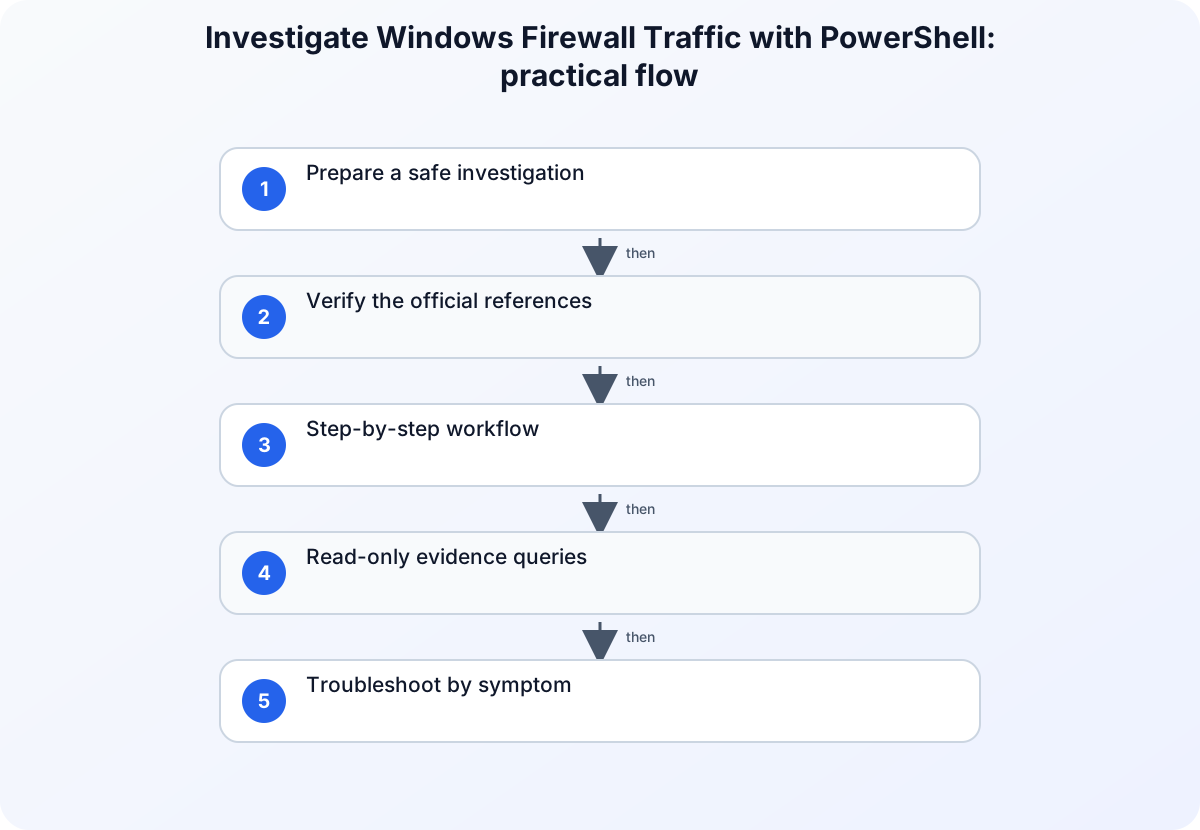
Prepare a safe investigation
Record the host, active network connection, application or service, direction of the traffic, protocol, port, remote endpoint, and the time of the failure. Confirm the investigation is authorized and avoid disabling a firewall profile as a diagnostic shortcut. Preserve the observed state so a later change can be compared with the original configuration. Record the evidence in the incident before making a change; preserve values and timestamps exactly as observed.
Verify the official references
Get-NetFirewallRule (NetSecurity)
Official scope: Use the Get-NetFirewallProfile reference for supported profile inspection.
Get-NetFirewallProfile (NetSecurity)
Official scope: Use the Get-NetFirewallRule reference for supported rule inspection.
Get-NetFirewallPortFilter (NetSecurity)
Official scope: Use the Get-NetFirewallPortFilter reference for the documented port-filter view.
Step-by-step workflow
1. Identify the active firewall profile
Inspect the configured firewall profiles on the affected host and note the profile that applies to the network connection in use. Keep the result with the incident record before comparing rules or testing the service again.
2. Find the relevant rule without changing it
Query the existing firewall rules and narrow the result by the known application, display name, direction, or enabled state. Confirm that a rule is associated with the expected profile before interpreting its presence as evidence that the traffic is allowed.
3. Check the port and protocol boundary
Inspect the port-filter information for the candidate rule and compare it with the actual protocol and port used by the affected service. Correlate this with a separate connectivity or service-level test rather than opening a broad range of ports.
Read-only evidence queries
Record the active connection profile
Get-NetConnectionProfile | Select-Object Name, NetworkCategory, InterfaceAlias, IPv4Connectivity, IPv6Connectivity
This captures the connection context that determines which firewall profile applies. Keep the interface alias with the failed-flow record rather than assuming the profile from the network name alone.
Inspect profile policy
Get-NetFirewallProfile | Select-Object Name, Enabled, DefaultInboundAction, DefaultOutboundAction
This shows the policy boundary for each Windows Firewall profile. Compare the active profile with the expected inbound and outbound defaults before narrowing the investigation to an individual rule.
Locate enabled candidate rules
Get-NetFirewallRule -Enabled True | Select-Object DisplayName, Direction, Action, Profile, PolicyStoreSource
Use known application, service, or display-name terms to reduce the candidate set. The result is evidence of a configured rule, not evidence that the rule matches the tested protocol and port.
Inspect the candidate port filter
Get-NetFirewallRule -DisplayName '<rule name>' | Get-NetFirewallPortFilter | Select-Object Protocol, LocalPort, RemotePort
Run this only after identifying a specific candidate rule. Compare its protocol and port values with the observed flow and retain the original rule name in the incident record.
Troubleshoot by symptom
| Symptom | Likely boundary | Next safe check |
|---|---|---|
| Service is reachable on one network but not another | Different active profile or network path | Compare the active profile and rule applicability on both paths. |
| A rule exists but the connection still fails | Direction, profile, port, protocol, or service mismatch | Inspect the rule and port filter, then test the service separately. |
| Opening a port appears to fix the issue | The original boundary is not yet understood | Revert the broad test and identify the smallest approved rule change. |
Interpret the evidence
1. Operational check
Start with a single failed flow, not a general statement that the application is blocked. Name the initiating host, destination host, direction, protocol, local port, remote port, and the active network category. A firewall rule can be present yet irrelevant because the tested flow has the wrong direction, belongs to another profile, or does not match the port filter. This record gives the rule query a precise target.
2. Operational check
Profile selection is a separate question from rule discovery. A domain, private, or public profile can have different defaults and different rule applicability. Capture the profile settings that apply at the time of the failure, then determine whether the candidate rule is enabled for that profile. Do not infer profile applicability from a rule display name or from a successful test made while connected through another network.
3. Operational check
A rule is only one layer of the packet decision. Its direction, action, program or service scope, address constraints, protocol, and port filter must agree with the flow under investigation. Compare those attributes one by one with the observed connection. If a rule permits inbound TCP traffic on a different port, it is not evidence that the tested outbound UDP flow should succeed.
4. Operational check
Use a deliberately narrow remediation only after the observed flow and the applicable rule boundary match. Avoid disabling a profile or creating an any-to-any exception to prove a hypothesis; those shortcuts replace useful evidence with a larger exposure. If a temporary rule is authorized, document its scope and expiry, retest the original flow, and remove the test rule when the investigation is complete.
Practical checklist
- Record the service, traffic direction, protocol, port, and active network context.
- Inspect active firewall profiles before changing a rule.
- Query the candidate rule and verify its enabled state and profile scope.
- Compare the rule’s port-filter information with the service actually being tested.
- Apply and document only the narrowest approved, reversible remediation.
Preserve the result and follow up
Record the observed values, command results, and any approved remediation so that the next operator can compare a later incident with the original boundary.
For related background, see Windows DNS Diagnostics with PowerShell: A Safe Troubleshooting Workflow and Common Network Ports Every IT Student Should Know.
Version and verification notes
Recheck the cited documentation before automating a command or applying this procedure to a different Windows release.
Summary
The working conclusion should name the observed boundary, the evidence that supports it, and the smallest approved next action for Investigate Windows Firewall Traffic with PowerShell.