Direct answer
Windows DNS failures should be separated into three questions: does the machine have the expected interface and resolver settings, can it reach a resolver, and does the resolver return the record being requested? Get-NetIPConfiguration, Test-NetConnection, and Resolve-DnsName answer those questions without changing the adapter or DNS cache. This guide is for administrators who need a safe, repeatable diagnosis before changing DHCP, firewall, or server configuration.
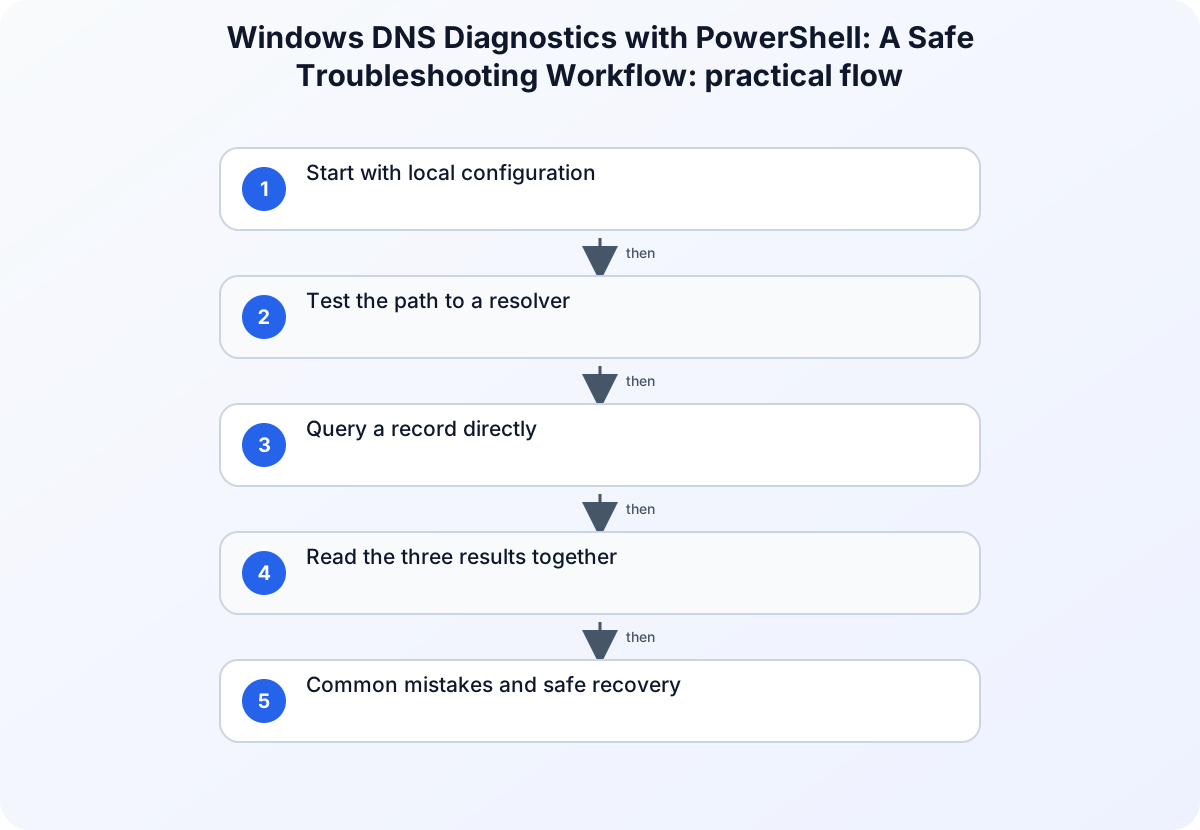
Start with local configuration
Get-NetIPConfiguration shows the interface, address, gateway, and DNS server assignments that Windows is using. Save the output before making a change. A missing address, an unexpected gateway, or a resolver from the wrong network explains many apparent DNS failures.
Get-NetIPConfiguration | Format-List InterfaceAlias,IPv4Address,IPv6Address,IPv4DefaultGateway,DNSServer
Check the active interface rather than assuming that the first adapter is connected. Virtual adapters, VPN clients, and disconnected Wi-Fi profiles can make a list look more complicated than the path used by the failing application. If no resolver is shown, verify DHCP or the approved static configuration before testing public names.
Test the path to a resolver
Test-NetConnection checks reachability and can test a TCP port. Use the resolver address shown by the configuration query rather than substituting a public resolver immediately. The result distinguishes a routing or firewall problem from a name-resolution problem.
Test-NetConnection -ComputerName 192.0.2.53 -Port 53
Replace 192.0.2.53 with the documented resolver for the environment. A failed TCP test does not prove that DNS is broken; it may indicate that the resolver uses another transport or that a firewall policy blocks the test. Record PingSucceeded, TcpTestSucceeded, and the interface selected by the command.
Query a record directly
Resolve-DnsName returns structured DNS records and supports an explicit server. Start with the name and record type involved in the incident, then repeat against the configured resolver if necessary.
Resolve-DnsName -Name example.com -Type A
Resolve-DnsName -Name example.com -Type A -Server 192.0.2.53
Use a domain approved for testing in your environment. Compare the answer, status, and server between the two queries. An answer from one resolver and a timeout from another points to resolver health, routing, policy, or delegation rather than a local browser problem.
Read the three results together
| Observation | Most likely boundary | Next safe check |
|---|---|---|
| No address or resolver | Interface, DHCP, or static configuration | Inspect the active adapter and approved DHCP scope |
| Resolver unreachable | Routing, firewall, or resolver availability | Test the gateway and the resolver port separately |
| Resolver reachable but name fails | Zone, record, delegation, or policy | Query the authoritative or approved recursive server |
| Name works on one resolver only | Cache or server-data difference | Compare TTL, answer, and resolver identity |
Do not change DNS settings just because a single public name fails. First query a known internal name and a known external name, and note whether the failure is consistent across clients. This avoids turning a local diagnostic problem into a wider outage.
Common mistakes and safe recovery
Avoid confusing a successful ping with successful DNS. ICMP may be blocked while DNS works, and a resolver may answer over a path that does not respond to ping. Avoid clearing the DNS client cache as the first action; it removes useful evidence and can hide whether the resolver or the cache produced the answer. If a cache reset is approved, record the failed and successful queries before and after the reset.
Use the exact interface and resolver values from the host. VPN software, split DNS, and policy-based resolvers can make a public lookup appear healthy while an internal name fails. When the issue is intermittent, capture several results with timestamps instead of relying on one successful query.
Practical checklist
- Save
Get-NetIPConfigurationoutput and identify the active interface. - Test the documented resolver with
Test-NetConnection. - Query the failing name with
Resolve-DnsName. - Repeat against the documented resolver and compare the answer.
- Check firewall, routing, DHCP, delegation, and server logs at the boundary indicated by the results.
- Document every command, timestamp, resolver, record type, and returned status.
For background, see the DNS fundamentals article and common network ports reference.
Preserve diagnostic evidence
When the result is intermittent, capture several queries with timestamps instead of relying on one successful lookup. Keep the resolver address, record type, response status, and interface together. A small text export is more useful than an unbounded console transcript because another administrator can repeat the exact test and compare the result after a routing, DHCP, or server-side change. Redact environment-specific hostnames and addresses before sharing examples publicly.
If the resolver returns an answer but the application still fails, capture the exact name and record type used by the application. A browser may use a proxy, a service may use a different resolver, and a VPN may apply split-DNS rules. Compare the PowerShell result with the application’s documented endpoint without changing the resolver yet. This keeps the diagnostic boundary clear and prevents a successful test of the wrong name from closing the incident prematurely.
Version and verification notes
The examples use the current Microsoft Learn pages for Windows Server 2025 PowerShell modules as checked at publication time. Cmdlet parameters and output properties can vary by Windows release and installed module. Verify the host version before putting a query into a long-lived monitoring task.
Summary
Use configuration inspection, resolver reachability, and direct record queries as separate tests. Keeping those boundaries distinct makes DNS failures easier to repair and avoids changing production settings before the evidence identifies the responsible layer.
Related guidance
- Network communication basics — foundational troubleshooting reference.