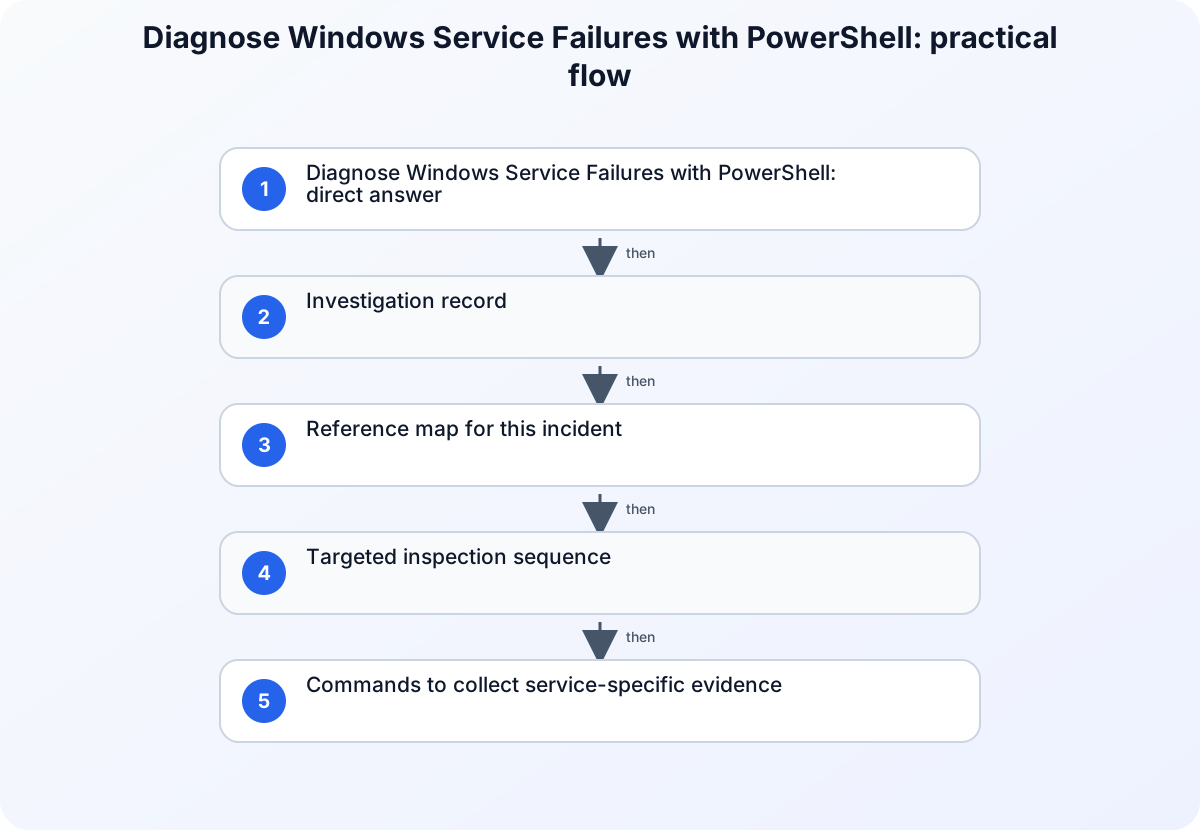
Diagnose Windows Service Failures with PowerShell: direct answer
Windows service troubleshooting is safer when the current service state, its registered configuration, and the result of the most recent failure are kept separate. Start with read-only inspection so a restart, startup-type change, or service-account edit does not destroy the evidence needed to identify the real boundary.
Investigation record
Record the host, service name, display name, expected behavior, first observed failure time, and the account or workload affected. Confirm whether the service is local or remote and use an approved account for the inspection. Do not restart, reconfigure, or change credentials during the first evidence-collection pass.
Reference map for this incident
Get-Service (Microsoft.PowerShell.Management)
Official scope: Use the Get-Service reference for supported service discovery and state inspection.
Get-CimInstance (CimCmdlets)
Official scope: Use the Get-CimInstance reference for supported CIM instance inspection.
Sc.exe query
Official scope: Use the Sc.exe query reference for its documented query syntax and output behavior.
Targeted inspection sequence
1. Identify the service and its current state
Use a read-only service query to distinguish the service name from its display name and capture its current state. Compare the live result with the expected state and record any dependent service or application that is reporting the failure.
2. Inspect the registered service information
Use a read-only CIM query to examine the service information relevant to the incident, then compare the observed configuration with the approved service design. Keep the result tied to the same host and timestamp as the initial state query.
3. Confirm the command-line query view when required
In a recovery console or an established command-line runbook, use the documented sc.exe query behavior to compare the registered service result. Treat the query as evidence collection and correlate it with service-specific and Windows event information before applying a fix.
Commands to collect service-specific evidence
Resolve the registered service identity
Get-Service -Name '<service name>' | Select-Object Name, DisplayName, Status, StartType
Use the registered service name from the incident or map it from the display name first. Record the state before trying a restart so that the initial failure remains observable.
Inspect the service CIM record
Get-CimInstance Win32_Service -Filter "Name='<service name>'" | Select-Object Name, State, StartMode, StartName, PathName
This separates the service’s registered configuration from its current status. Compare the returned account and executable context with the approved design for the affected host.
Capture the command-line state
sc.exe query "<service name>"
Use the command-line query where it is part of the established runbook or recovery environment. Retain the output with the timestamp and service name so it can be correlated with other evidence.
Symptom-to-boundary map
| Observed symptom | Boundary to investigate | Next evidence check |
|---|---|---|
| Service is stopped unexpectedly | Service failure, dependency, startup condition, or host problem | Capture the current state and correlate the failure time with related evidence. |
| Service starts then stops | Application, dependency, account, or configuration boundary | Inspect the registered service information before attempting another start. |
| Service behaves differently across hosts | Configuration or environment drift | Compare the same read-only service and CIM results from both hosts. |
Diagnose Windows Service Failures with PowerShell: interpretation notes
1. Operational check
Treat the display name and service name as separate identifiers. Incident reports often contain a friendly display name while command-line and CIM results use the registered service name. Resolve that mapping before comparing hosts or looking for dependencies. A query against a similarly named service can produce plausible output while leaving the failing workload unexplained.
2. Operational check
State alone does not explain a service failure. Record whether the service is stopped, start-pending, running, or repeatedly returning to a stopped state, together with the first observed failure time. That timing lets you correlate the service result with application logs, system events, updates, certificate changes, or dependency failures instead of assuming that a restart is a diagnosis.
3. Operational check
Registered service configuration provides a different kind of evidence from live state. Compare the relevant configuration fields and the account or executable context with the approved design, especially when the same service behaves differently on another host. Keep environment drift, account permissions, and dependency availability as distinct hypotheses until the evidence connects them to the failed start or workload.
4. Operational check
If a remediation is needed, change one boundary at a time and preserve the before-and-after result. A startup-type change, recovery edit, credential change, or restart can have operational effects beyond the immediate symptom. Use the smallest approved action, verify the workload that originally failed, and document any rollback condition so that a temporary recovery does not conceal the underlying cause. Include the exact service name, host, start mode, and account context in the final handoff so another operator can reproduce the comparison without relying on memory.
Evidence handoff checklist
- Record the exact service name, host, expected state, and first observed failure time.
- Inspect the current service state without restarting it.
- Capture the relevant registered service information with a read-only query.
- Correlate the result with application and Windows event evidence.
- Apply one approved, reversible change only after identifying the failing boundary.
Relevant internal context
Troubleshooting Windows Event Logs with PowerShell and Windows DNS Diagnostics with PowerShell: A Safe Troubleshooting Workflow
Scope and version context
Windows Server and PowerShell service-management documentation checked at publication time.
Conclusion
For this incident, record the observed boundary, the evidence that supports it, and the smallest approved next action for Diagnose Windows Service Failures with PowerShell.