Direct answer
Windows time failures should be separated into the configured source, the source that is currently selected, peer reachability, and the measured offset. Read those boundaries first because changing peers or forcing a resynchronization too early can hide whether the problem is policy, domain hierarchy, name resolution, UDP 123 reachability, or an unavailable source. Start with evidence already available to the operator and use the referenced documentation to verify the behavior of the component in scope.
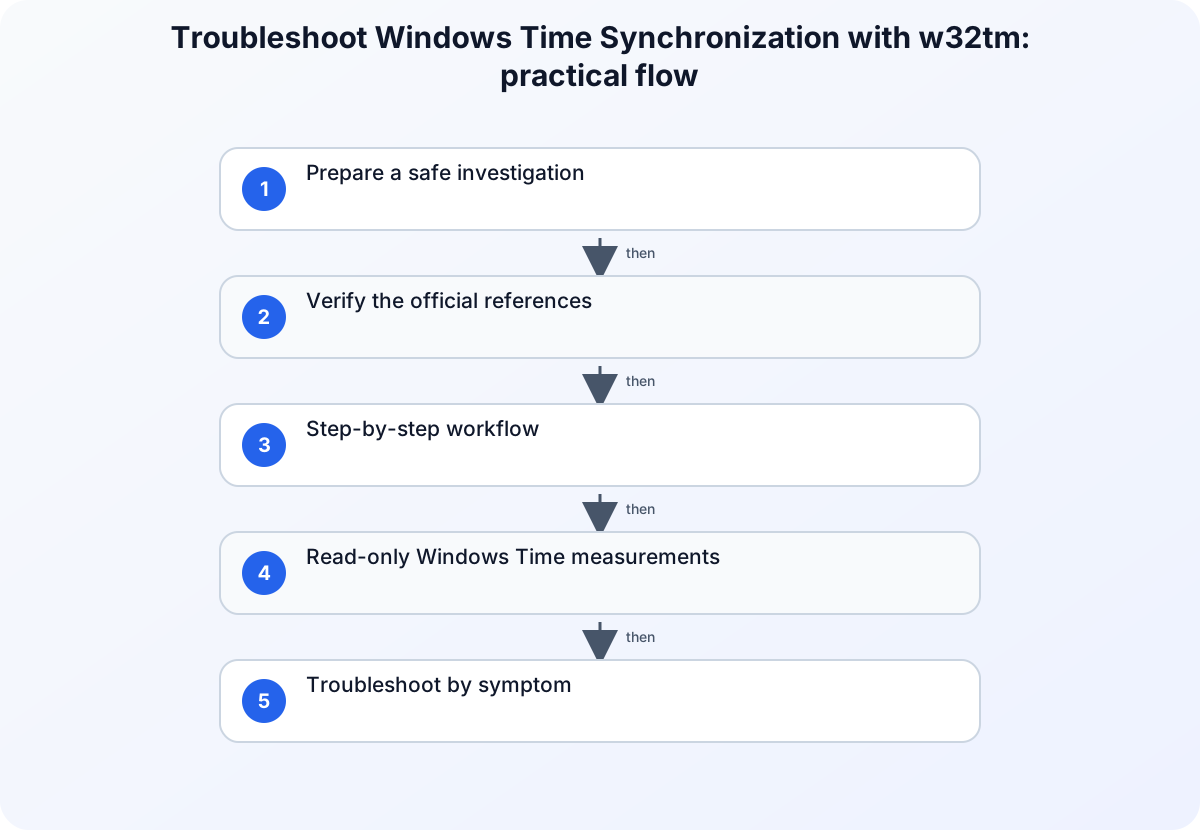
Prepare a safe investigation
Record the affected host, domain membership, operating-system version, current time and time zone, authentication symptom, and approximate offset from a trusted reference. Use an approved administrative console for w32tm, preserve the first query results, and do not edit registry values or domain-controller time policy during the initial evidence pass. Before changing policy, access, networking, or application settings, capture a small reproducible record of the failure. Include the affected identity, workload, tenant or environment, time zone, correlation identifier when available, and the action that produced the result. Mask secrets and personal data in any ticket or shared export. A narrow record is safer to review and lets another administrator test the same hypothesis without repeating a disruptive change.
Verify the official references
Windows Time service tools and settings
Use Windows Time service tools and settings to verify this specific part of the investigation: Use the Windows Time tools reference for documented w32tm query behavior and required context. Match the field names, permissions, and interface labels for Windows Time service tools and settings before changing the affected service.
How the Windows Time service works
Use How the Windows Time service works to verify this specific part of the investigation: Use the Windows Time service architecture reference to interpret hierarchy and source selection. Match the field names, permissions, and interface labels for How the Windows Time service works before changing the affected service.
w32tm resync reports no time data available
Use w32tm resync reports no time data available to verify this specific part of the investigation: Use Microsoft’s no-time-data troubleshooting article for the documented failure boundaries. Match the field names, permissions, and interface labels for w32tm resync reports no time data available before changing the affected service.
Step-by-step workflow
For each step, record the timestamp, affected actor or workload, exact result, and evidence scope before moving on. This keeps the investigation reproducible without repeating the same warning after every action.
1. Read the current source and status
Query the current time source and detailed service status on the affected host. Keep the source name, stratum, last successful synchronization time, and reported offset together so the evidence describes one observation rather than several unrelated commands.
2. Compare peers with the domain design
Inspect the configured peers and determine whether a domain member is expected to follow the domain hierarchy or a reviewed manual peer list. Compare the runtime result with Group Policy and role expectations before treating a registry value as the active configuration.
3. Investigate a no-time-data result
When resynchronization reports that no time data is available, verify name resolution, the selected source, network reachability, and relevant service events before repeating the request. A repeated resync is not a substitute for finding why no acceptable sample reached the client.
Read-only Windows Time measurements
Use an elevated PowerShell console where required, but keep the first pass observational. These commands report the selected source, detailed status, configured peers, and a bounded offset sample without changing the time-service configuration:
$ReferenceSource = 'time.windows.com'

w32tm /query /source
w32tm /query /status /verbose
w32tm /query /peers
w32tm /stripchart /computer:$ReferenceSource /samples:5 /dataonly
Keep the source, stratum, last successful synchronization, peer state, and five offset samples in one evidence record. Substitute the approved reference for the example host; a public source may be inappropriate for a domain member whose design requires the domain hierarchy.
Troubleshoot by symptom
Use the observed result to choose the next check instead of changing several controls at once. The following table is a decision aid, not a list of automatic fixes. Confirm the product-specific behavior in the cited documentation before applying a remediation.
| Symptom | Likely boundary | Next safe check |
|---|---|---|
| The source is Local CMOS Clock | No acceptable upstream source is currently selected | Compare runtime source and peers with the expected domain or manual configuration. |
| Resync reports no time data | Source discovery, DNS, reachability, policy, or peer response problem | Preserve status and peer output, then verify the selected source path. |
| Only one host has a large offset | Host-specific service, policy, network, or virtualization boundary | Compare the same bounded queries with a healthy host in the same role. |
Common mistakes to avoid
Do not treat an isolated success as proof that the underlying configuration is correct. Different users, applications, devices, networks, and token states can follow different paths. Do not remove a security control merely to make one test pass; first identify the exact condition that produced the failure and verify whether a narrower, approved adjustment exists. Avoid copying commands, policy values, or portal labels from old runbooks without checking the current official reference.
Keep the investigation read-only until the evidence identifies a change boundary. If a temporary exception is approved, define who authorized it, when it expires, how it will be monitored, and how the original state will be restored. A reversible experiment is useful; an undocumented workaround creates a second incident to diagnose later.
Practical checklist
- Record host role, domain membership, time zone, observed offset, and failure time.
- Capture current source, status, and peer information before changing configuration.
- Compare runtime behavior with the intended domain hierarchy or approved manual source.
- Verify DNS and the network path to the selected source when samples are unavailable.
- Apply one approved change, then repeat the original bounded measurement and retain the before-and-after evidence.
Preserve the result and follow up
After the immediate issue is understood, record the conclusion in language that separates facts, inferences, and remaining unknowns. Attach only the necessary evidence and link the relevant official reference rather than pasting a long, unversioned screenshot. If the same pattern returns, compare the new record with the earlier timestamp, scope, and configuration state before making another change. This turns a one-off troubleshooting session into a dependable operating procedure.
For related background, see Windows DNS Diagnostics with PowerShell: A Safe Troubleshooting Workflow and Troubleshooting Windows Event Logs with PowerShell. These internal articles provide context, but the cited official documents remain the source of truth for the configuration or diagnostic details in this workflow.
Version and verification notes
This article is based on the official sources listed for this topic and was checked at publication time. Cloud services, identity behavior, product labels, and administrative interfaces can change. Recheck the cited documentation before automating a command, relying on a default, or applying the same procedure to a different tenant, subscription, cluster, or operating-system release.
Summary
Start with a small evidence record, use the documented diagnostic path for the affected service, and make one reversible change only after the evidence supports it. That approach protects availability and security while producing a clear handoff for the next operator.